
Greenlite SEM: Google Analytics
Welcome to the Greenlite Learning Center
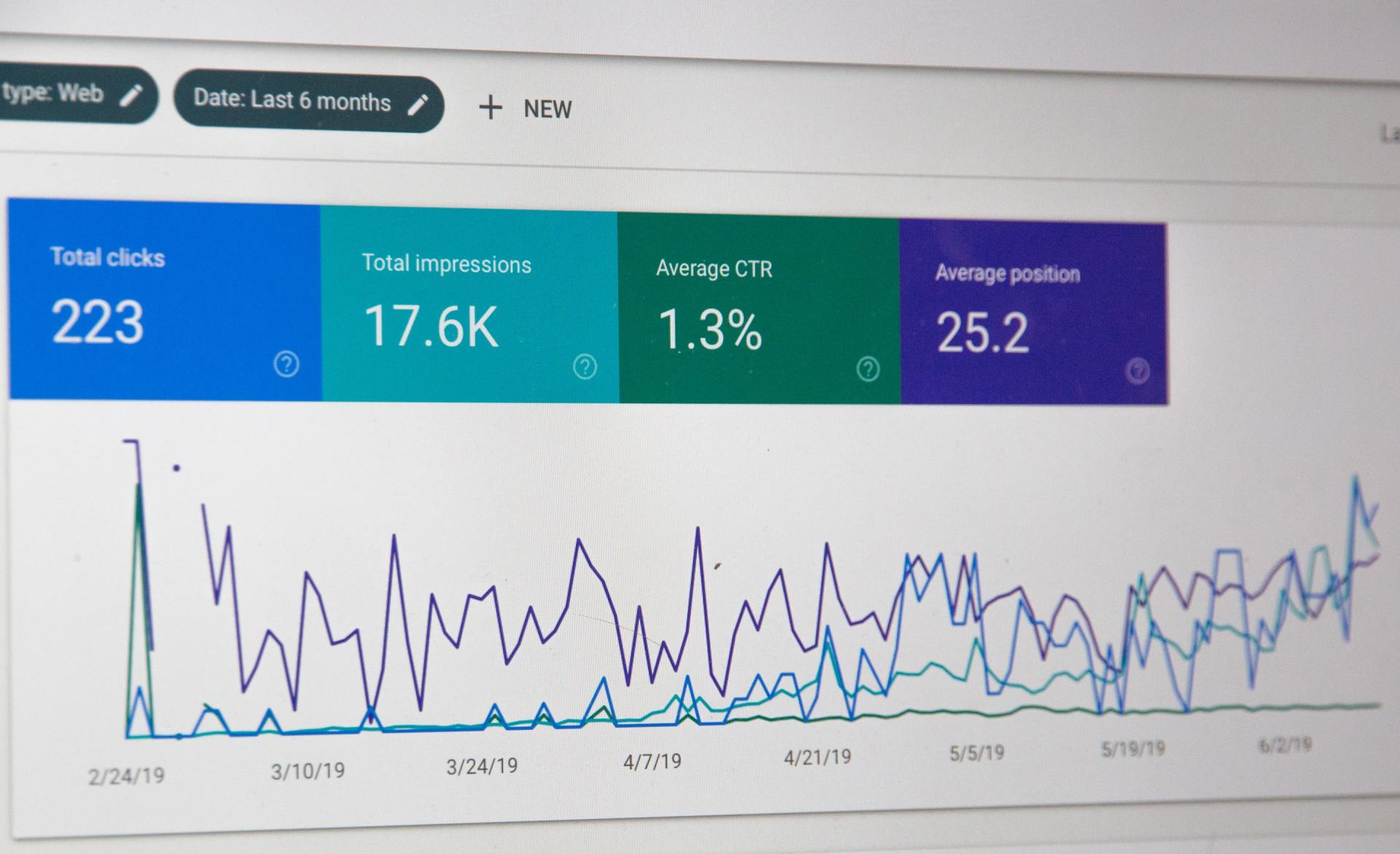
Google Analytics measures business goals and finds areas to improve upon those goals. Improvements are made thru performance measurements, applying analysis and taking actions. The way to make adjustments and improvements is using many of the Google digital tools to bring out this analytical data. Tools and strategies are forever changing and any digital marketer worth his or her salt is constantly updating, changing and evolving to keep pace. In order to interpret this data you must first understand the terms used within the analytics platform. Browsing the dashboard can be quite daunting when you don't have a grasp of the meanings and definitions used by Google Analytics. To make your adventures in analytics a little bit easier, we are providing some term meanings and definitions to help navigate the GA dashboard. To learn more contact the Greenlite Team today.
Using Google Analytics Data to Drive Website Traffic
Diving into Google Analytics can seem quite a daunting task when you have no idea what it is. Even after somebody tells you what it is, using it is still relatively scary. All the reports, dimensions and metrics get quite confusing. So what we decided to do is create a simple and concise walk through on what GA is and how you can implement its many tools for the benefit of your business. However, before we talk about using GA, lets get into what all the terms used within the platform actually mean.
- METRICS: Measures quantitative data such as counts, ratios and percentages.
- DIMENSIONS: Describes qualitative data and splits it into categories.
- PAGEVIEW: Recording of every time a user loads a tracked page within a website.
- HITS: Interaction with website and page content. Hits are broken up into 3 different types; page tracking (pageview), event tracking (button clicks, form fills, and scroll downs), ecommerce tracking (purchases, conversions, and adds to cart).
- SESSIONS: A users visit to a site within a given time frame (30 minutes). An exit can mean actually leaving or inactivity on the site for 30+ minutes. A user who leave and returns within a 30 minute window is counted in the original session.
- USER: Visitor to a site identified by client ID stored in browser cookies. A users client ID can be tracked across multiple sessions.
- SEGMENT: A group of users broken up into categories or dimensions (location, device, traffic source). A segment can use any variable to differentiate between users.
- CONVERSION: Completed action or goal by a user on a website (sign-up, email submission, purchase or multiple page visits). Conversion goals are defined by the website owner or a representative of and can be an event or group of events. Events can be configured to track in Google Analytics.
- SOURCE: Where a user actually originated from (Instagram, Twitter, Facebook).
- MEDIUM: The avenue a user takes from the source to your website (Social Media, Adwords, etc.). Attribution models assign credit to both sources and mediums that pushed the user to goals, events or conversions. This enables optimization of your sales funnel.
HOW DOES GOOGLE ANALYTICS WORK?
(...AND HOW TO SETUP AN ACCOUNT)
Firstly, there are 2 requirements for Google Analytics to track data:
- Users must enable browser cookies. Cookies identify users and gather data as users travel through the website (device IP, page view, address, etc.) Blocked cookies can't be tracked by Google Analytics.
- Copy of a JS Tracking Code (Global Site Tag) on every web page you want data from on the website. Google Analytics generates thed coe when you create a new account. This code sends data to Google servers.
Once you have implemented Google Analytics, you now have access to tools that provide a wealth of information about your website as well as visitors to it. Some of the indispensable data you receive once your GA account is tracking your website looks like this:
- Amount of traffic your site gets overall
- Referrals: the websites your traffic arrived from
- Individual page traffic
- Amount of leads converted
- Amount of conversions and conversion revenue on e-commerce websites
- Demographic information of visitors (e.g. where they live)
- Device traffic data and whether or not it is from desktop or mobile.
- Dwell time and more.
Setting up GA starts with creating an account on the Google Tag Manager Dashboard. Setting up Tag Manager is explained in a previous article (How to set up Google Tag Manager) and we will forego explaining for the sake of this article. GTM consolidates data from your website and sends it to different platforms, such as Analytics. Once your GTM account is created, move on and create your Google Analytics account.
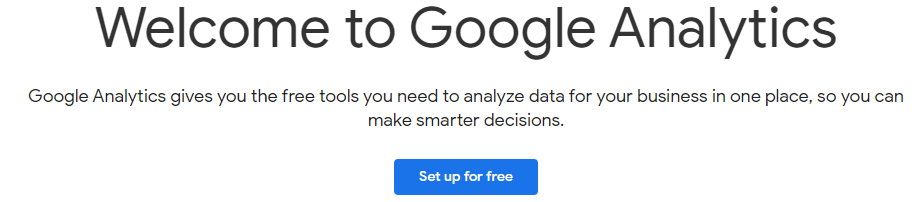
- Go to https://analytics.google.com/ and click the "Set up for free" button:
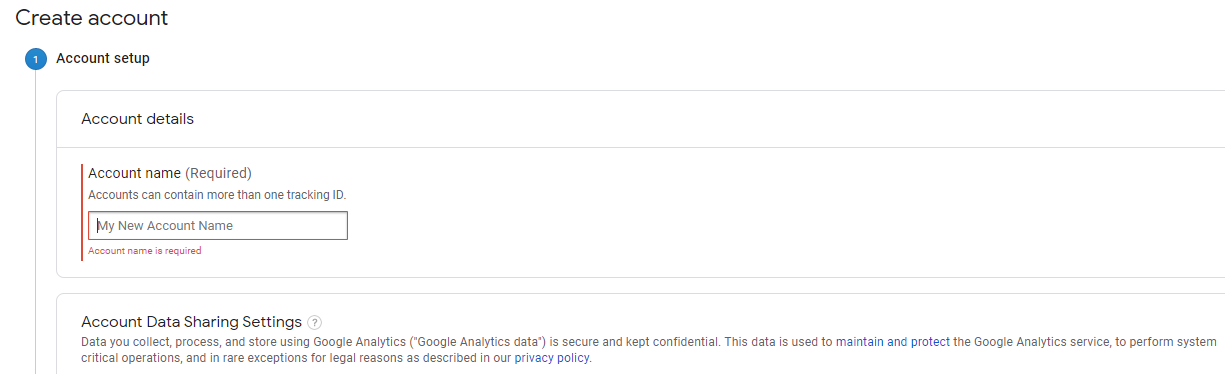
2. Enter your new Account Name.
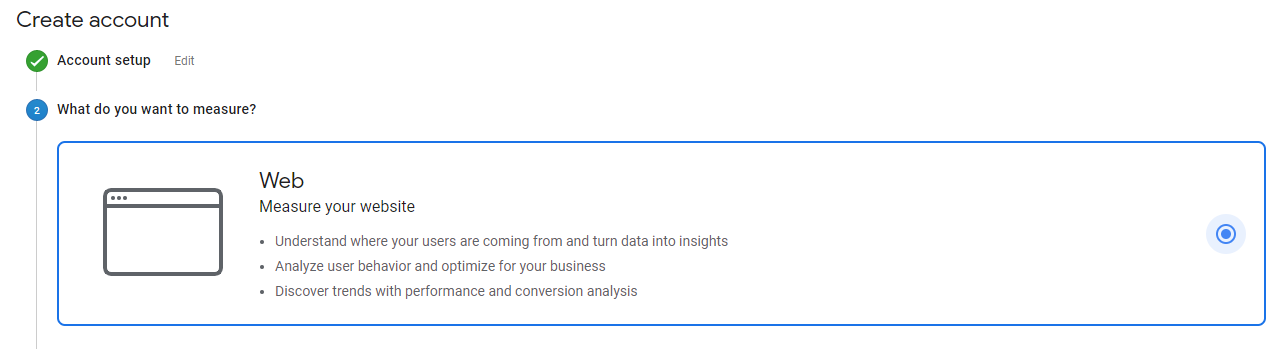
3. Select what your account will measure. Website, iOS and Android Apps or users across both
4. Enter account and website name and website's URL. Select your industry category & time zone for reporting in.
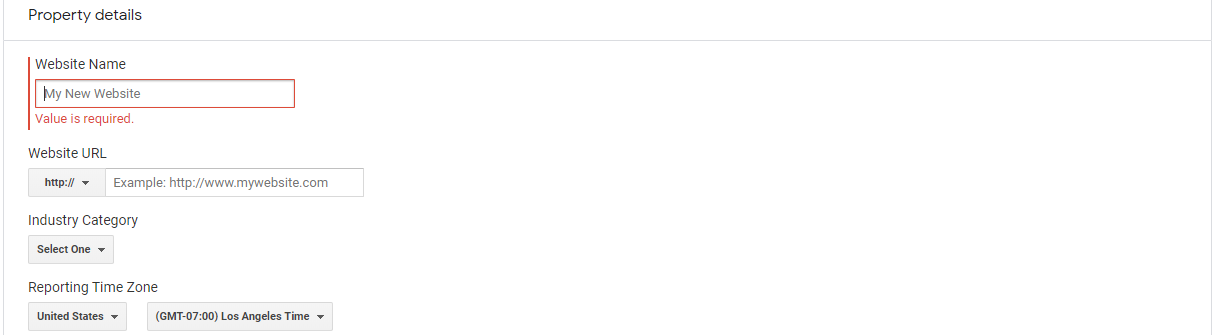
5. After accepting all the Google Terms and Services, your tracking id will be generated and your account is ready to go!
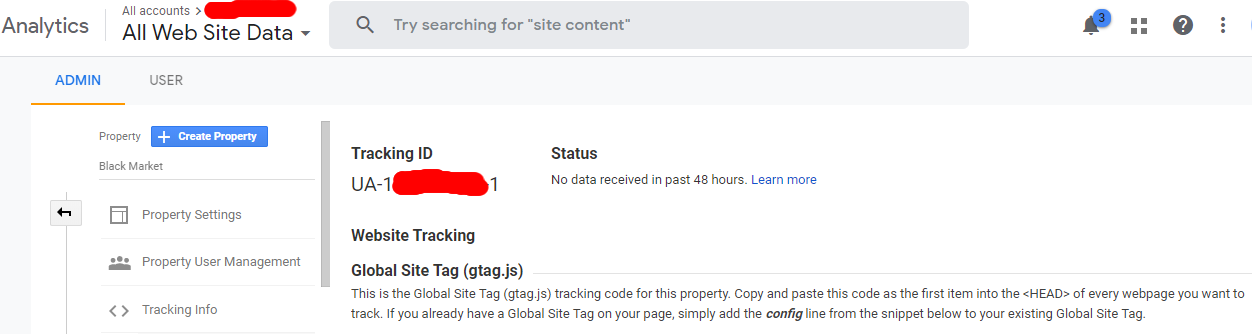
Now that your new Google Analytics account is set up, the next step is to simply add your Global Site Tag (which contains your generated tracking id) as the first item in the <HEAD> of every webpage you would like to track within the website. The tag looks similar to the example below.
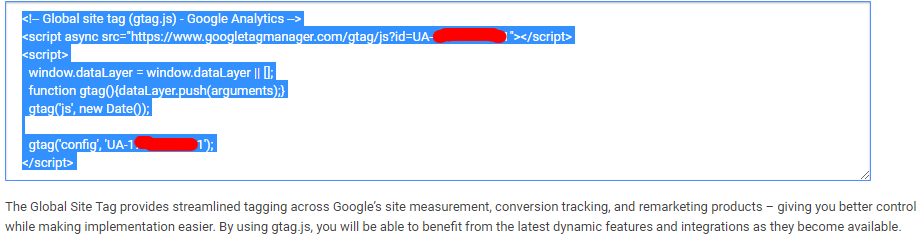
Source: Google
Always remember that your tracking id is custom and therefore unique to your website and personal data. Do not share your GA Tracking ID publicly. Once connected to your site, Google sends all the data you're looking for (and more) to your new account. There are other platforms to be connected and additional more advanced steps to be taken to get the most out of your analytics account. A more advanced GA post is coming soon. Here's a list of some of the future topics.
- Google Tag Manager
- Setting up Goals in Analytics
- Connecting a Google Ads account
- Linking to Search Console
- Understanding Analytic Views